TestingBot Buildkite Plugin
A Buildkite plugin for running TestingBot browser and device tests from your pipeline:
- 🌉 Tunnel — starts a TestingBot Tunnel before your step and stops it afterwards, so tests can reach servers behind your firewall or on localhost
- ✅ Status updates — marks your TestingBot tests passed/failed via the TestingBot REST API based on the step outcome (or per-test statuses you report)
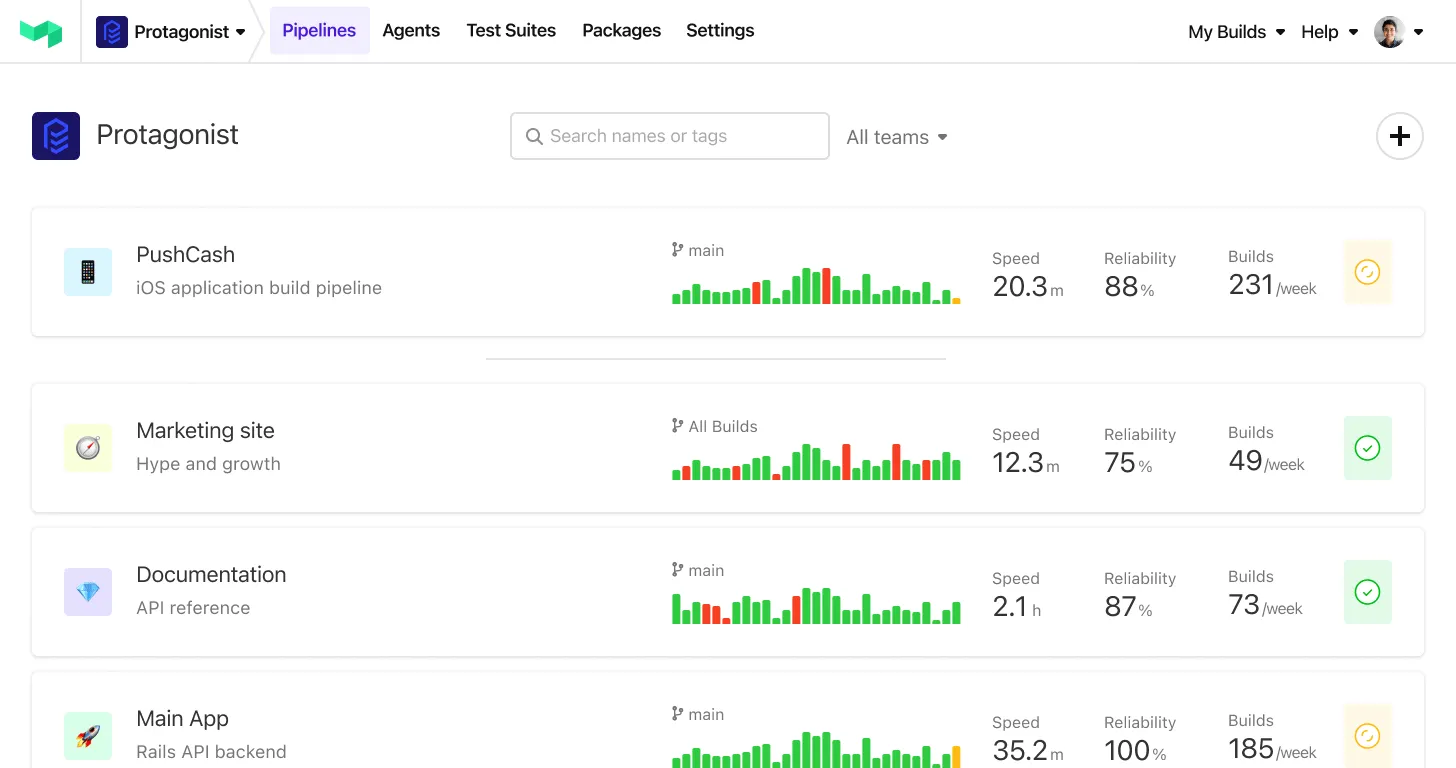
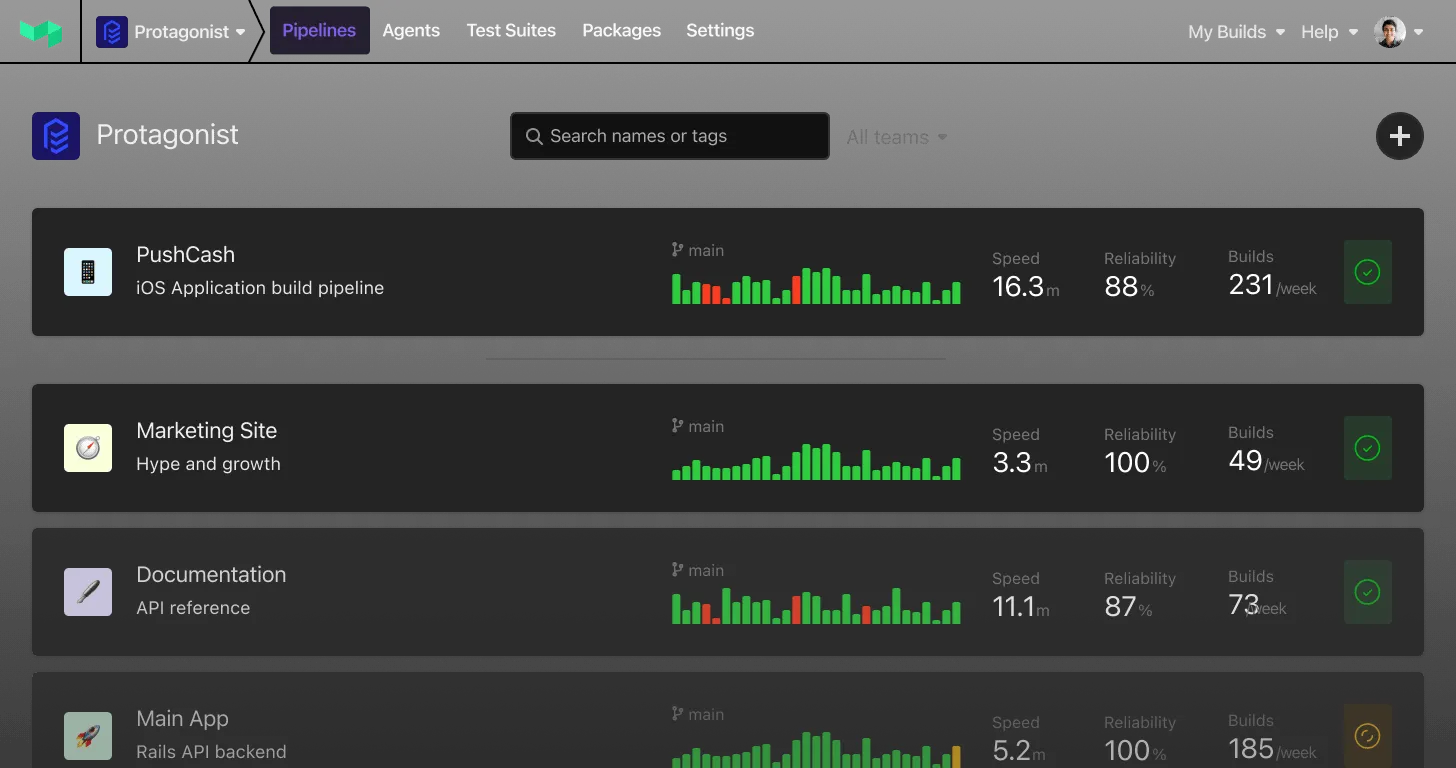
- 📝 Annotations — annotates the build with a results table linking to the full report, video and screenshots of every test on TestingBot
Example
Add the plugin to your pipeline.yml:
steps:
  - label: ":testingbot: E2E tests"
    command: npm run test:e2e
    plugins:
      - testingbot/testingbot#v1.0.0: ~
With a tunnel identifier and extra tunnel options:
steps:
  - label: ":testingbot: E2E tests"
    command: npm run test:e2e
    plugins:
      - testingbot/testingbot#v1.0.0:
          tunnel-identifier: "%job-id%"
          tunnel-args:
            - "--nocache"
          tunnel-ready-timeout: 180
Annotation and status updates only, no tunnel:
steps:
  - label: ":testingbot: E2E tests"
    command: npm run test:e2e
    plugins:
      - testingbot/testingbot#v1.0.0:
          tunnel: false
Credentials
The plugin reads your TestingBot key and secret from the TESTINGBOT_KEY and TESTINGBOT_SECRET environment variables on the agent — never put them in your pipeline YAML. Set them via an agent environment hook, your secrets manager, or Buildkite secrets. You find them on your TestingBot account page.
If your secrets are stored under different names, point the plugin at them:
steps:
  - label: ":testingbot: E2E tests"
    command: npm run test:e2e
    plugins:
      - testingbot/testingbot#v1.0.0:
          api-key-env: MY_TB_KEY
          api-secret-env: MY_TB_SECRET
Linking your tests to the build
For status updates and annotations the plugin needs to know which TestingBot sessions belong to this step. Two ways, checked in this order:
1. Sessions file (explicit, works with parallel steps)
Append each WebDriver session ID to the file named by $TESTINGBOT_SESSIONS_FILE (default testingbot-sessions.txt in the checkout), one per line, optionally followed by a per-test status and name:
<session-id> [passed|failed] [test name]For example in a WebdriverIO afterSession hook:
afterSession: async function (config, capabilities, specs) {
  const status = global.testFailed ? 'failed' : 'passed';
  fs.appendFileSync(process.env.TESTINGBOT_SESSIONS_FILE,
    `${browser.sessionId} ${status} ${specs[0]}\n`);
}
Per-line statuses override the step-level outcome, giving you accurate per-test results.
2. Build capability (zero code)
Set the build capability of your tests to the value of $TESTINGBOT_BUILD (exported by the plugin, default <pipeline-slug>-<build-number>):
capabilities: {
  'tb:options': {
    build: process.env.TESTINGBOT_BUILD,
  }
}
The plugin then finds the sessions through the TestingBot builds API. Without per-test statuses, all sessions get marked with the step outcome. Note: with parallel jobs sharing one build, every job annotates all of the build’s sessions — use the sessions file for parallel steps.
Tunnel requirements
The TestingBot tunnel is a Java application: the agent needs Java 11+ (17 LTS recommended) on its PATH. The tunnel jar is downloaded once and cached in ~/.cache/testingbot-tunnel. Set tunnel: false if you don’t need one.
Routing your tests through the tunnel — two options:
- Point your tests at the tunnel’s local relay,
http://localhost:4445/wd/hub, instead ofhttps://hub.testingbot.com/wd/hub. If another tunnel may already be running on the agent, move the relay to a different port withtunnel-args: ["--se-port", "8446"]. - Keep using
https://hub.testingbot.com/wd/huband set atunnel-identifieron the plugin; your tests then pass the same value (exported as$TESTINGBOT_TUNNEL_IDENTIFIER) as thetunnel-identifiercapability intb:options:
capabilities: {
  'tb:options': {
    build: process.env.TESTINGBOT_BUILD,
    'tunnel-identifier': process.env.TESTINGBOT_TUNNEL_IDENTIFIER,
  }
}
When a tunnel identifier is configured, it is exported as $TESTINGBOT_TUNNEL_IDENTIFIER so your tests can set the matching tunnelIdentifier capability.
Annotations
The annotation shows a results table with pass/fail, platform, duration, and links to the report and video of each test, plus a collapsible failure detail with a screenshot for each failed test:
- Links use TestingBot share URLs by default, so anyone who can see the build page can open the test report and video without a TestingBot login. Set
share-links: falseto use login-required links instead. The share hash only grants view access to that specific test. - Failure screenshots are re-uploaded as Buildkite artifacts (the TestingBot asset URLs expire). Set
thumbnails: falseto skip this. - Rich annotations need
jqon the agent; without it the plugin degrades to a links-only list.
Configuration
| Option | Type | Default | Description |
|---|---|---|---|
tunnel | boolean | true | Start a TestingBot tunnel before the command and stop it after |
tunnel-identifier | string | – | Tunnel identifier (-i); %job-id% is replaced with $BUILDKITE_JOB_ID — recommended for parallel jobs |
tunnel-args | array | [] | Extra flags passed verbatim to the tunnel (see command line options) |
tunnel-ready-timeout | integer | 120 | Seconds to wait for the tunnel to become ready before failing the step |
tunnel-download-url | string | TestingBot CDN | Override the tunnel zip download URL (e.g. an internal mirror) |
annotate | boolean | true | Create a build annotation with the test results |
share-links | boolean | true | Use no-login share URLs in the annotation |
thumbnails | boolean | true | Upload failure screenshots as artifacts and embed them in the annotation |
update-status | boolean | true | Update TestingBot test statuses from the step outcome |
sessions-file | string | testingbot-sessions.txt | Path (relative to the checkout) where tests write session IDs |
build-identifier | string | <pipeline>-<build-number> | TestingBot build identifier, exported as $TESTINGBOT_BUILD |
api-key-env | string | TESTINGBOT_KEY | Name of the environment variable holding the API key |
api-secret-env | string | TESTINGBOT_SECRET | Name of the environment variable holding the API secret |
strict | boolean | false | Fail the step when status updates or annotations fail (default: warn only) |
Developing
Run the tests with the Buildkite plugin tester:
docker run --rm -v "$PWD:/plugin:ro" buildkite/plugin-tester:v4.1.1Lint the plugin and shell scripts:
docker run --rm -v "$PWD:/plugin:ro" buildkite/plugin-linter --id testingbot/testingbot
shellcheck hooks/* lib/*.bash
License
MIT (see LICENSE)
 bugcrowd